



How to setup Variant Collection Display Snippet?
What is Variant Collection Display?
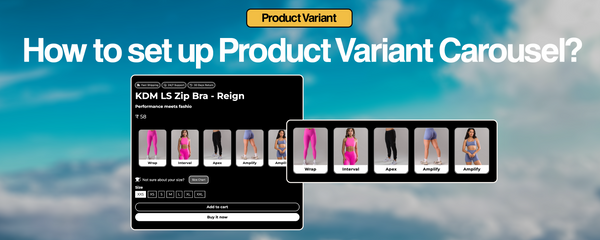
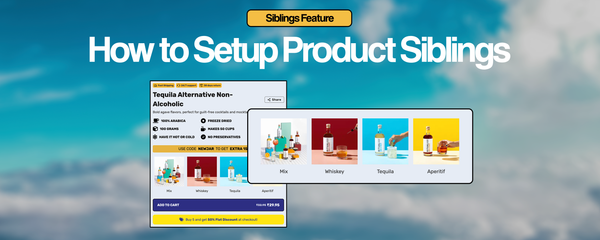
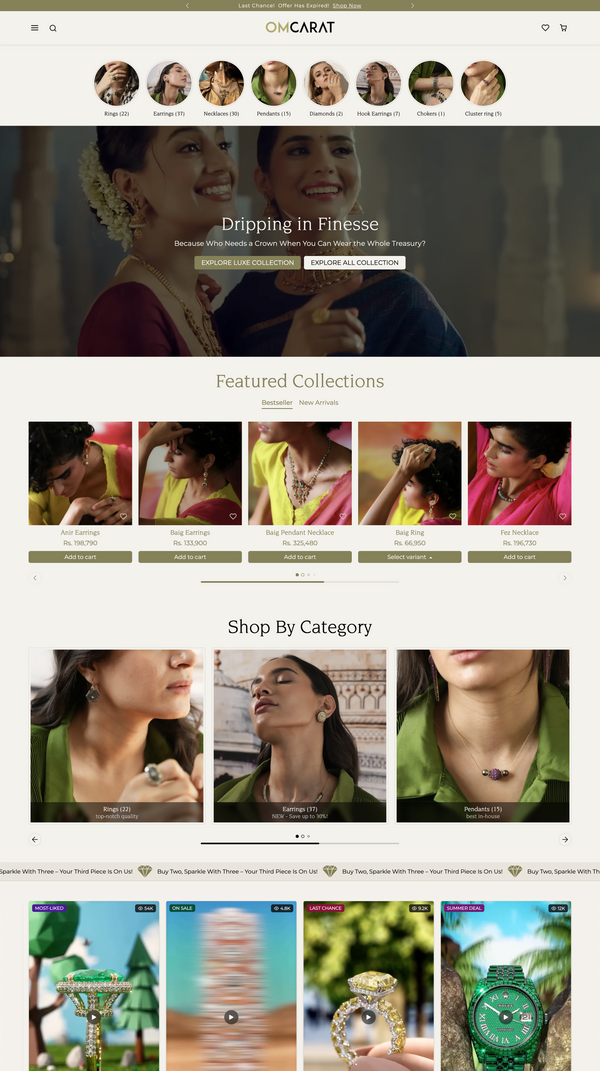
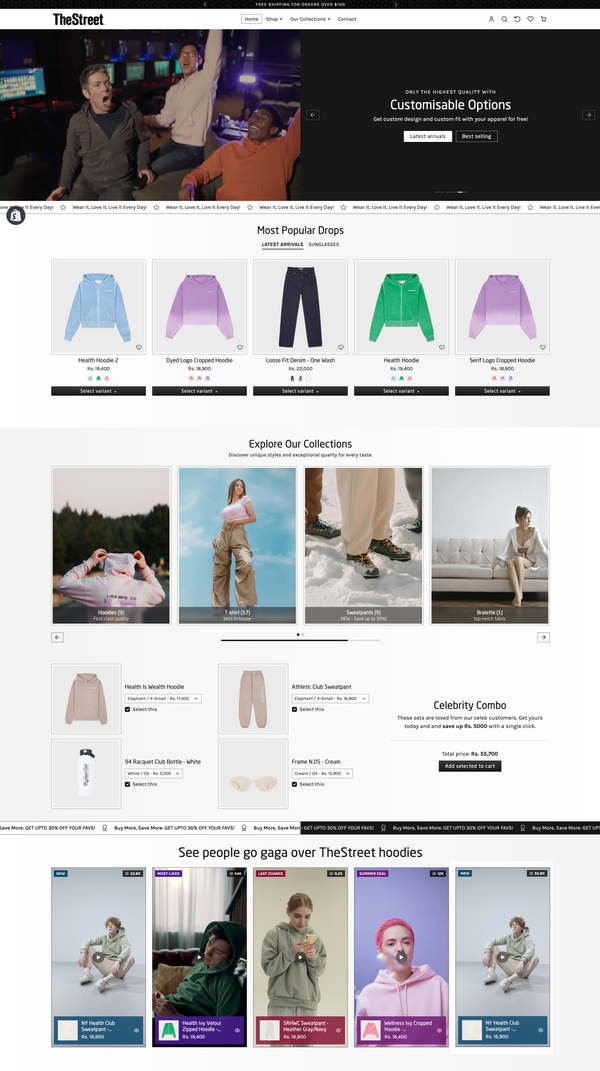
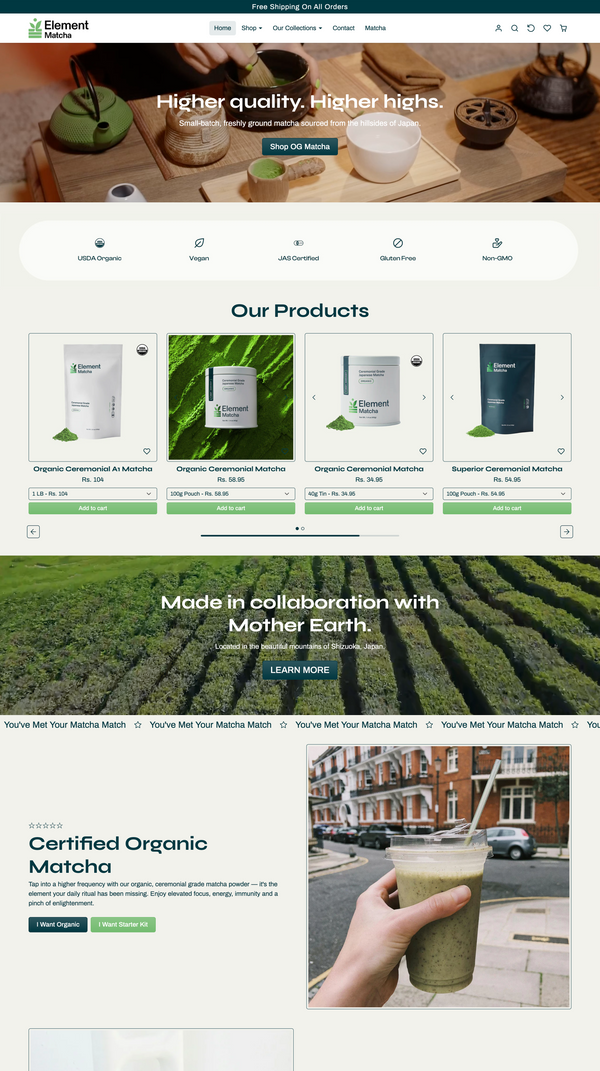
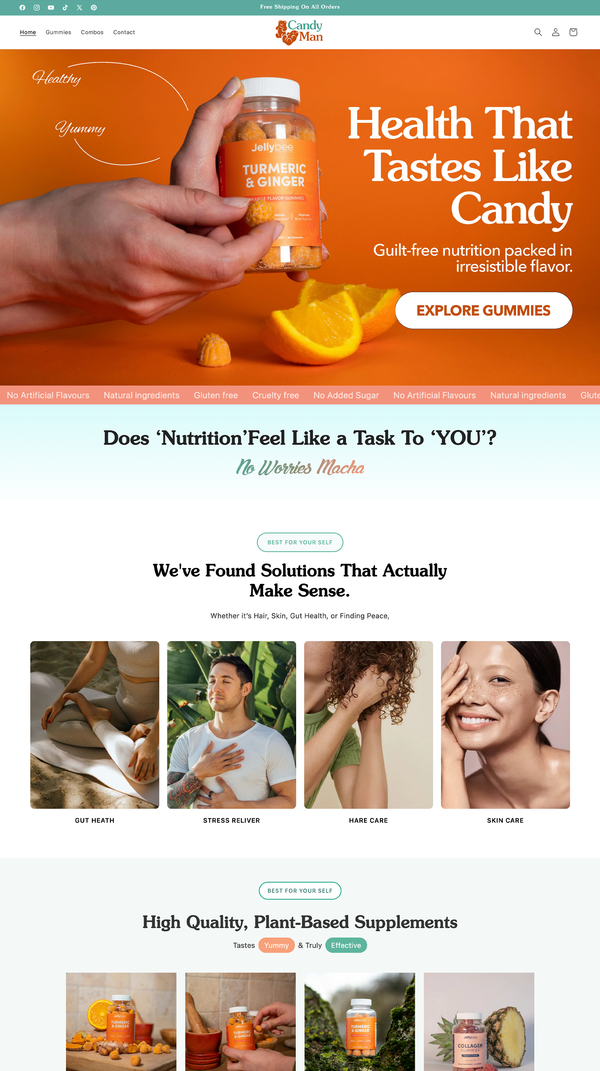
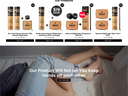
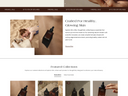
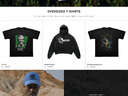
The Variant Collection Display snippet allows you to showcase related products from a specific collection directly on your product pages. Perfect for displaying product variants, complementary items, or related products in a customizable grid layout with modern styling and responsive design.
Step 1: Create Metafield Definitions
Creation Instructions
- Go to Shopify Admin → Settings → Metafields → Products
- Click "Add definition"
- Create each metafield with the specifications below
- Set Type to "Single line text"
- No validation required
Required Metafields (1 total)
Step 2: Set Metafield Values
How to Set Values
- Navigate to Products → Select Product → Metafields section
- Find "Jhango Variant Collection" field
- Enter the collection handle (e.g., "summer-collection")
- Save product
How to Find Collection Handles
- Go to Shopify Admin → Products → Collections
- Click on your desired collection
- The handle is shown in the URL and in the collection settings
- Example: If URL is
/collections/summer-dresses, the handle issummer-dresses
Key Features
Usage Notes
- Keep collection handles short and descriptive
- Use consistent naming conventions across collections
- Test collections have sufficient products (minimum 3-6 items)
- Ensure product images are high quality and consistent sizing
- Grid Layout: Configure items per row for desktop/tablet/mobile
- Card Styling: Customize borders, shadows, and background colors
- Typography: Adjust font sizes, weights, and colors
- Spacing: Control padding and margins between items
- Image Settings: Set image aspect ratios and border radius
Visual Guide: Setting Up Metafields
Step-by-Step Screenshots
Here's exactly how the metafields look when you're setting them up in Shopify:

Product Metafields View: In your product's metafields section, you'll see the "Jhango Variant Collection" field where you can enter the collection handle, such as "summer-collection" or "product-variants".

Creating Benefits Metafield: This screenshot shows the metafield definition setup for the Benefits Grid. Note the "Single line text (List)" type and the namespace "custom.jhango_benefits".
Frequently Asked Questions
A Variant Collection Display is a visual component that shows related products from a specific Shopify collection on your product pages. It helps customers discover similar items, product variants, or complementary products, increasing engagement and potential sales.
No coding experience is required for basic setup. The tutorial guides you through creating the metafield using Shopify's admin interface and setting collection handles for each product. However, adding the snippet to your theme templates may require basic HTML knowledge or developer assistance.
Yes, absolutely! Each product can display a different collection through its metafield value. This allows you to show product-specific variants, related items, or category-specific collections tailored to each product.
If you enter a collection handle that doesn't exist, the snippet will fall back to the default collection specified in the block settings. It's important to verify that your collection handles are spelled correctly and that the collections exist and are published.
The number of products displayed depends on your block settings configuration. You can customize the grid layout to show different numbers of items per row for desktop and mobile devices. The snippet will display products from the collection based on your grid settings.
If a collection is empty or all products are unpublished, the snippet will simply not display any items. It's recommended to ensure your collections have at least 3-6 published products for the best visual impact.
No.